
Blog Wercstat
AI assistant in the attachment panel: managing files with language
The attachment panel in our framework now has an AI assistant. It not only answers questions about the content of files, but also performs management tasks based on an instruction in plain language: organising, labelling, creating new files and editing existing ones.
The previous blog post described the redesigned attachment panel of our framework, with all its buttons for uploading, organising, version control and filtering. An AI assistant has now been added to it.
The assistant opens via the magic wand in the toolbar. You describe in plain language what you want; the assistant determines the steps and carries them out. It has the same actions as the buttons in the panel, plus the ability to generate and edit files itself. Each section below includes a reference to the manual variant from the previous post: the same task, now with an instruction instead of a series of clicks.
Available AI support:
Understanding content
Where the previous panel had a preview to view a file yourself, the assistant now answers questions about the content.
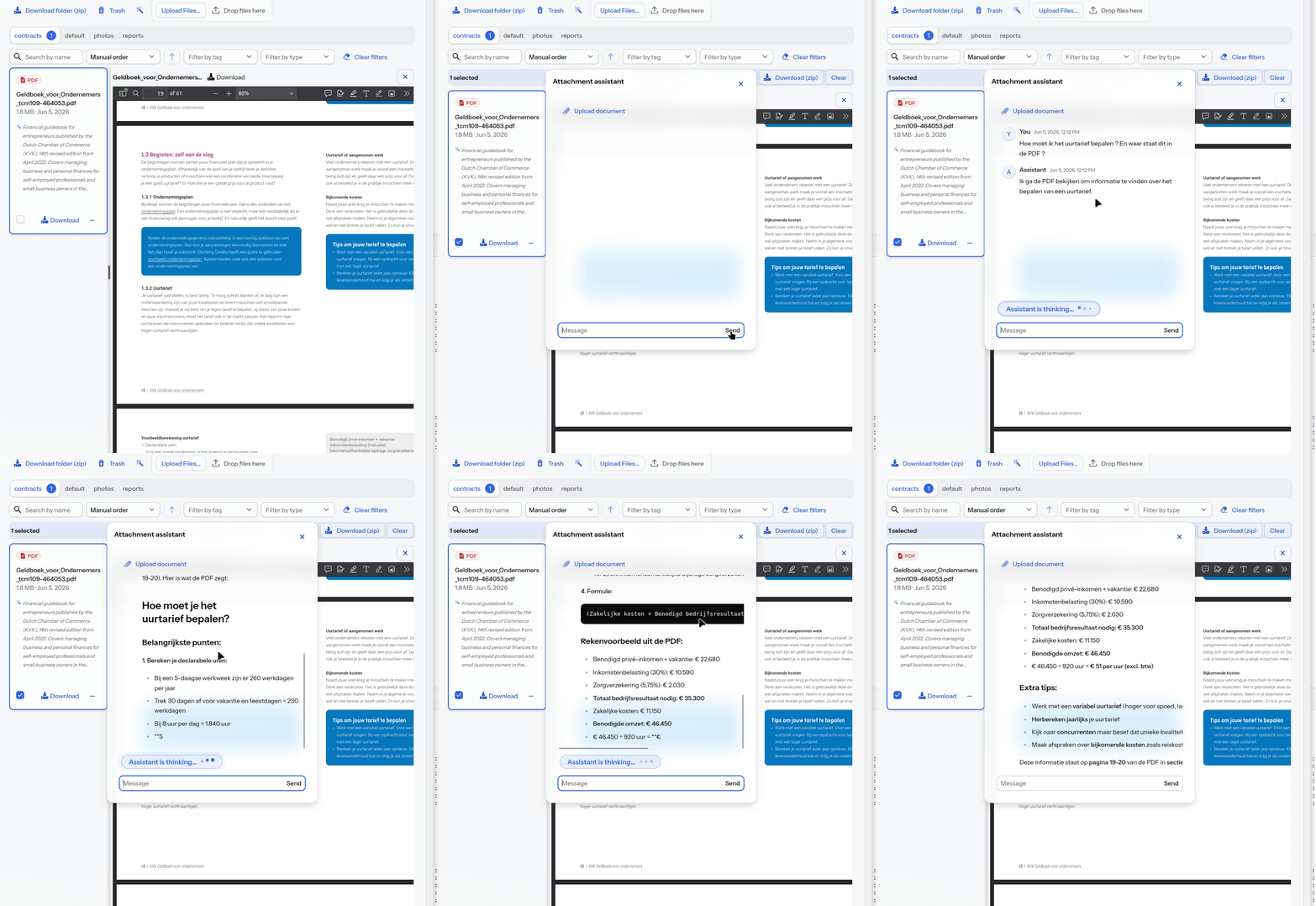
Questions about the content: ask a question like "what’s in these attachments?" and the assistant answers based on the AI summary that is automatically created after each upload.
Reading the full content: where needed, the assistant goes beyond the summary and reads the full text and properties of a file, in virtually every common format: PDF, Word, Excel, PowerPoint, email, HTML, plain text and more.
Version control
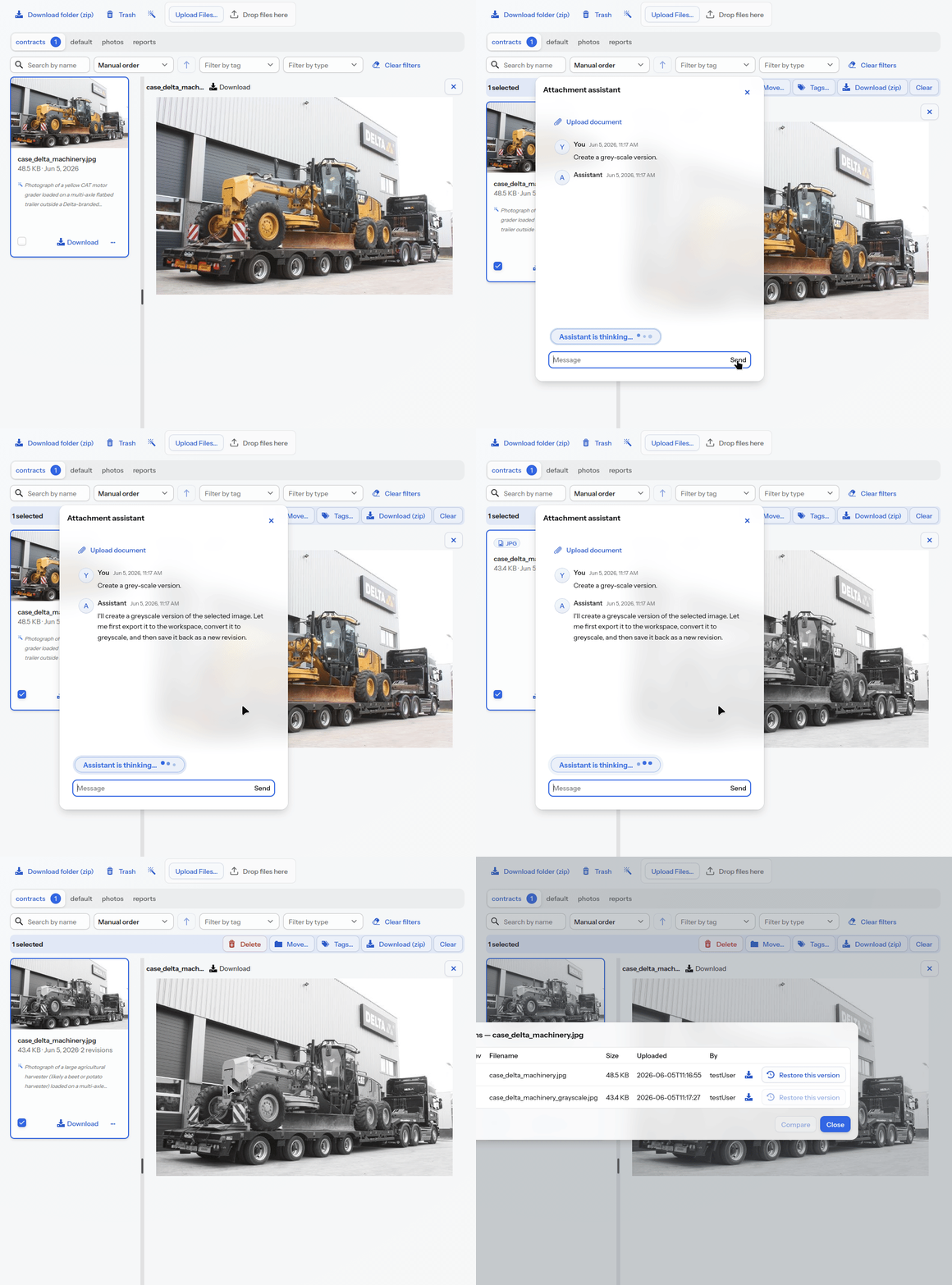
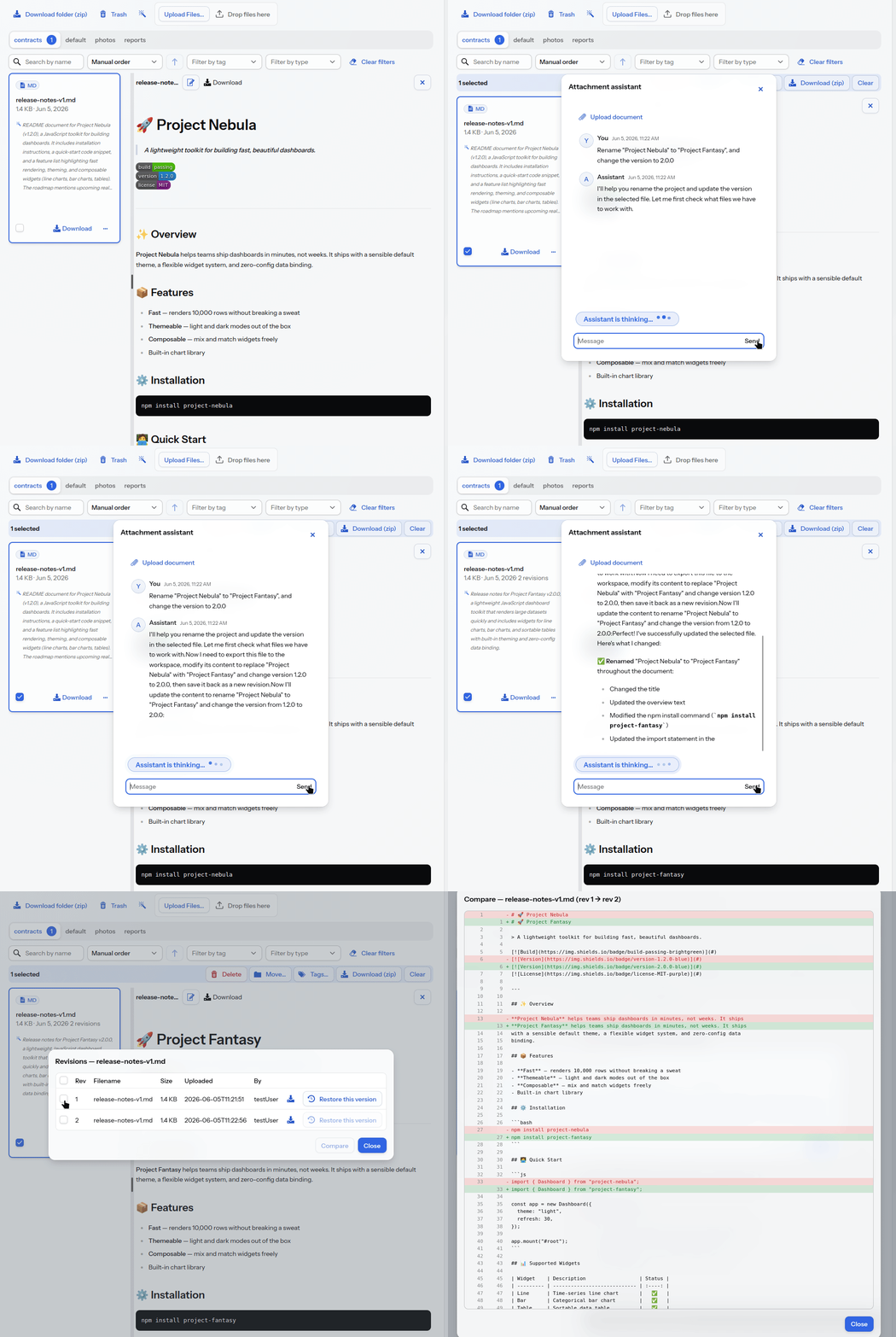
Save a new version: a file edited or created by the assistant can be saved as a new version of a selected attachment, without losing the old one.
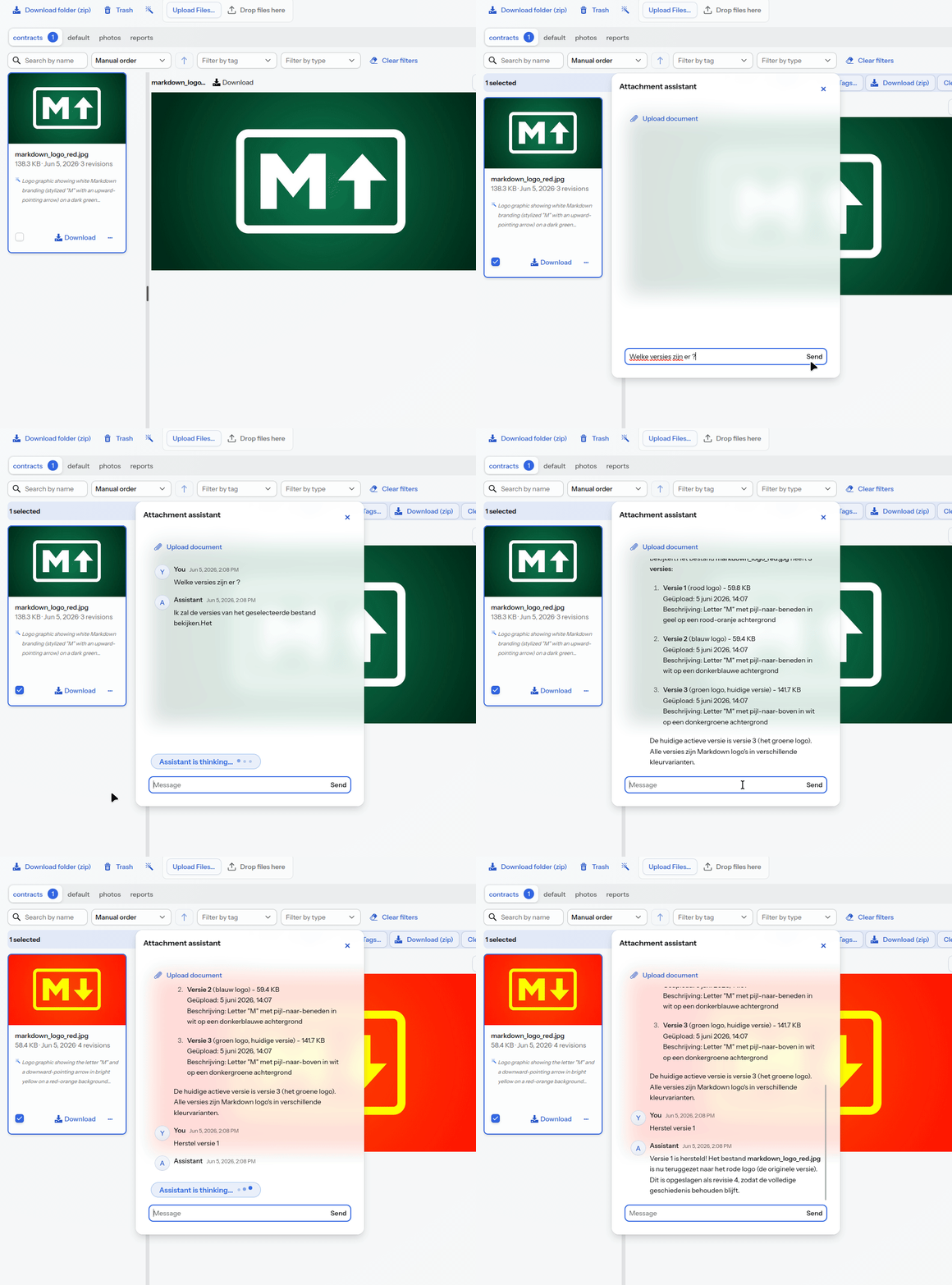
Restore an earlier version: ask the assistant to restore a previous revision as the current version. It looks up the revision and restores it, keeping the intermediate versions.
By hand, this works via the revision buttons; see version control in the previous post.
Folders
Bulk move in one instruction: select files and give an instruction like "move these to the Quotations folder". The assistant looks up the right folder and applies it to the whole selection.
Finding the right folder: you don’t have to name the folder exactly; the assistant matches your description with the existing folders.
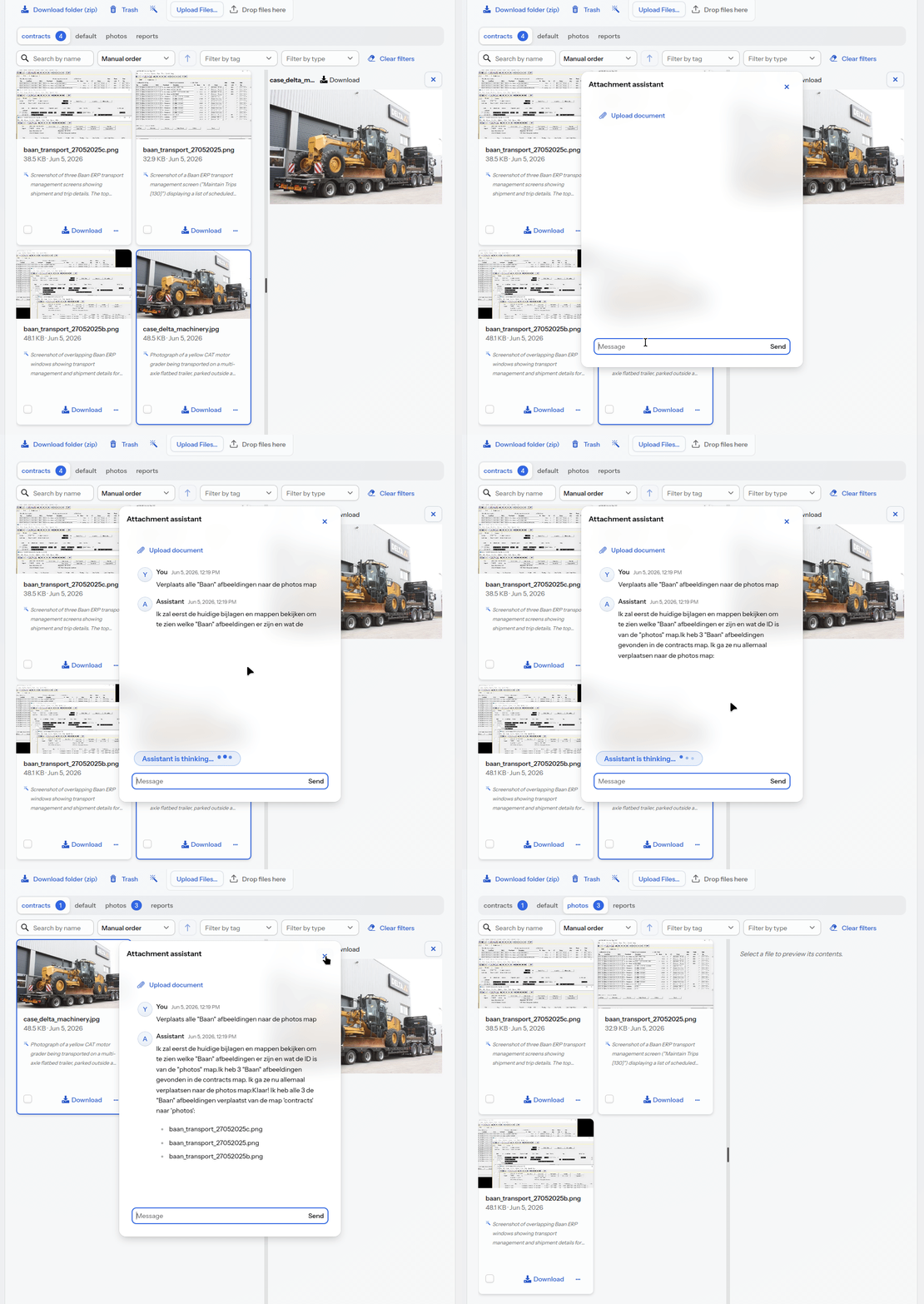
Prefer to drag and click yourself? See folders in the previous post.
Labels and categorisation
Assigning labels: have the assistant assign a label to a selection, for example "give the sales screens the label sales". It looks up the label and applies it in bulk.
Removing labels: just as easily, it removes a label again.
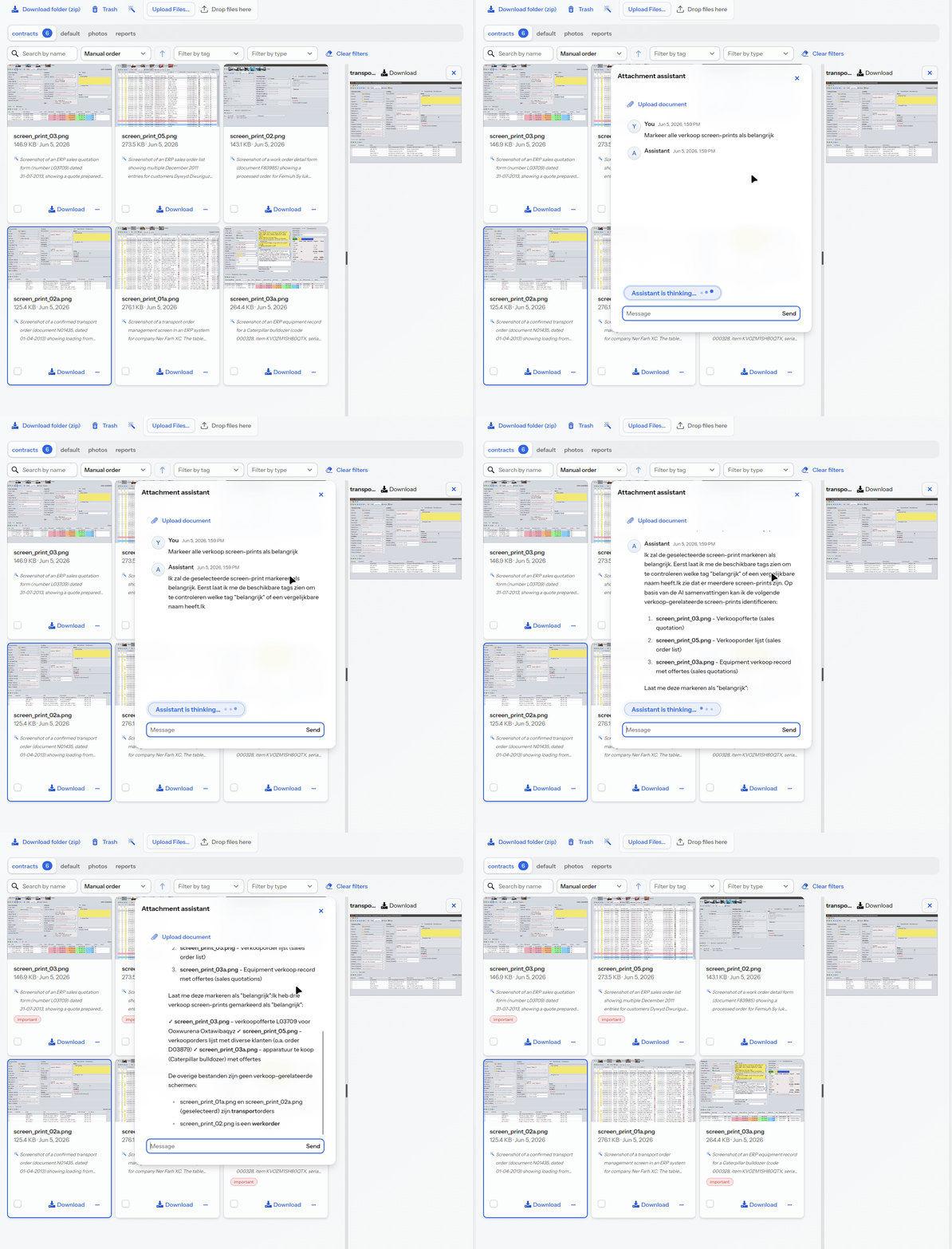
The manual variant with colour chips is under labels and categorisation.
Generating and editing files
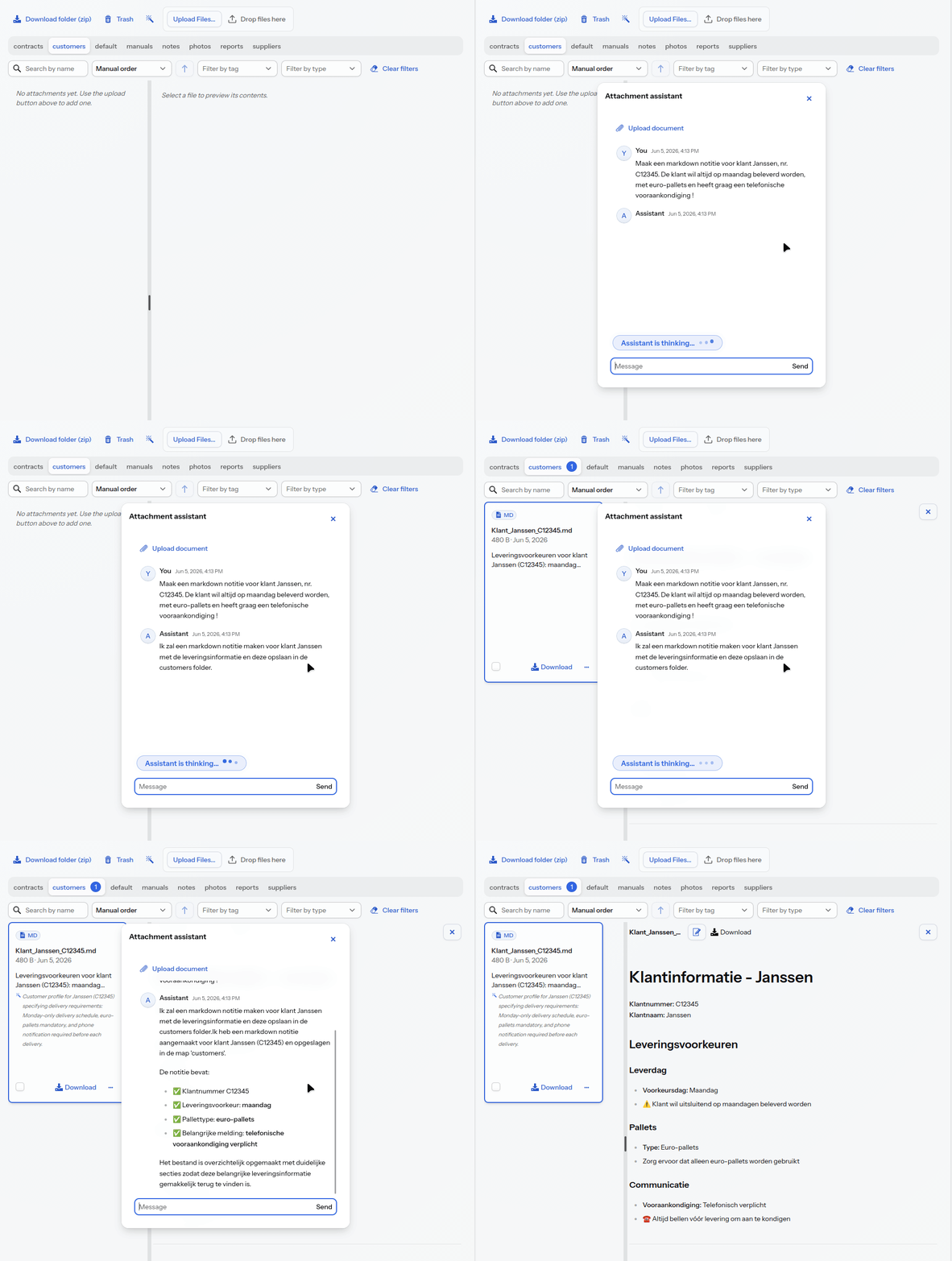
Where the previous post described editing in place for text, the assistant does this on instruction, and also creates files itself.
Creating files itself: the assistant composes a file, such as a note, a CSV or an overview, and saves it as an attachment. No upload is needed.
Editing text and Markdown: ask for a change, such as updating a project name and version number, and the assistant edits the file and saves it as a new version.
Translating: have a document translated into another language and saved as a new attachment or version.
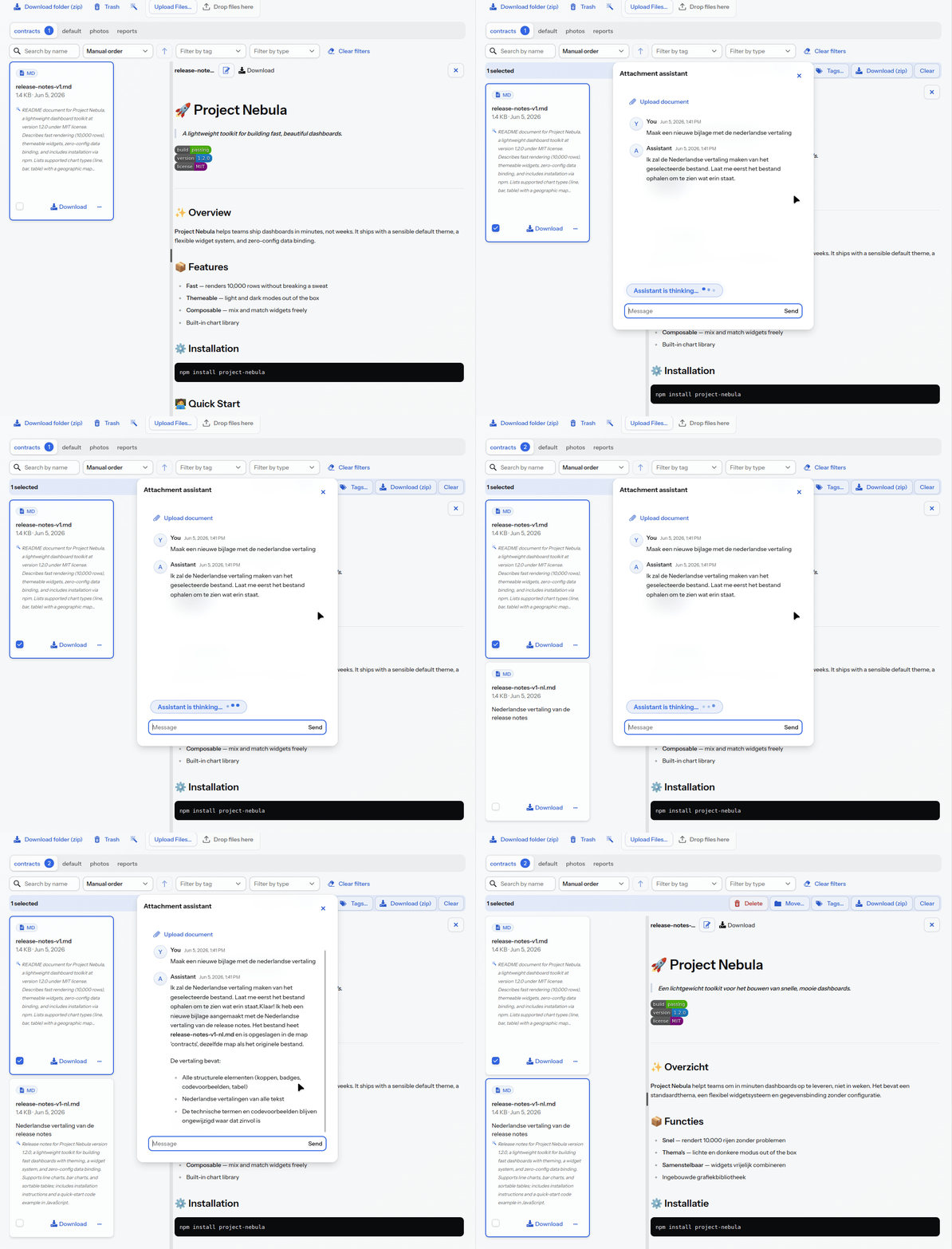
Editing images: select an image and ask to crop it, resize it or, for example, convert it to greyscale.
Editing PDFs: merge, copy a page range, delete or rotate pages, place a watermark and set document properties. Each edit produces a new file.
Trash
Delete on instruction: ask the assistant to delete a file and it goes to the trash, just like a manual deletion.
Restore: the assistant easily brings back a file deleted by mistake.
Permanent deletion: this only happens after explicit confirmation.
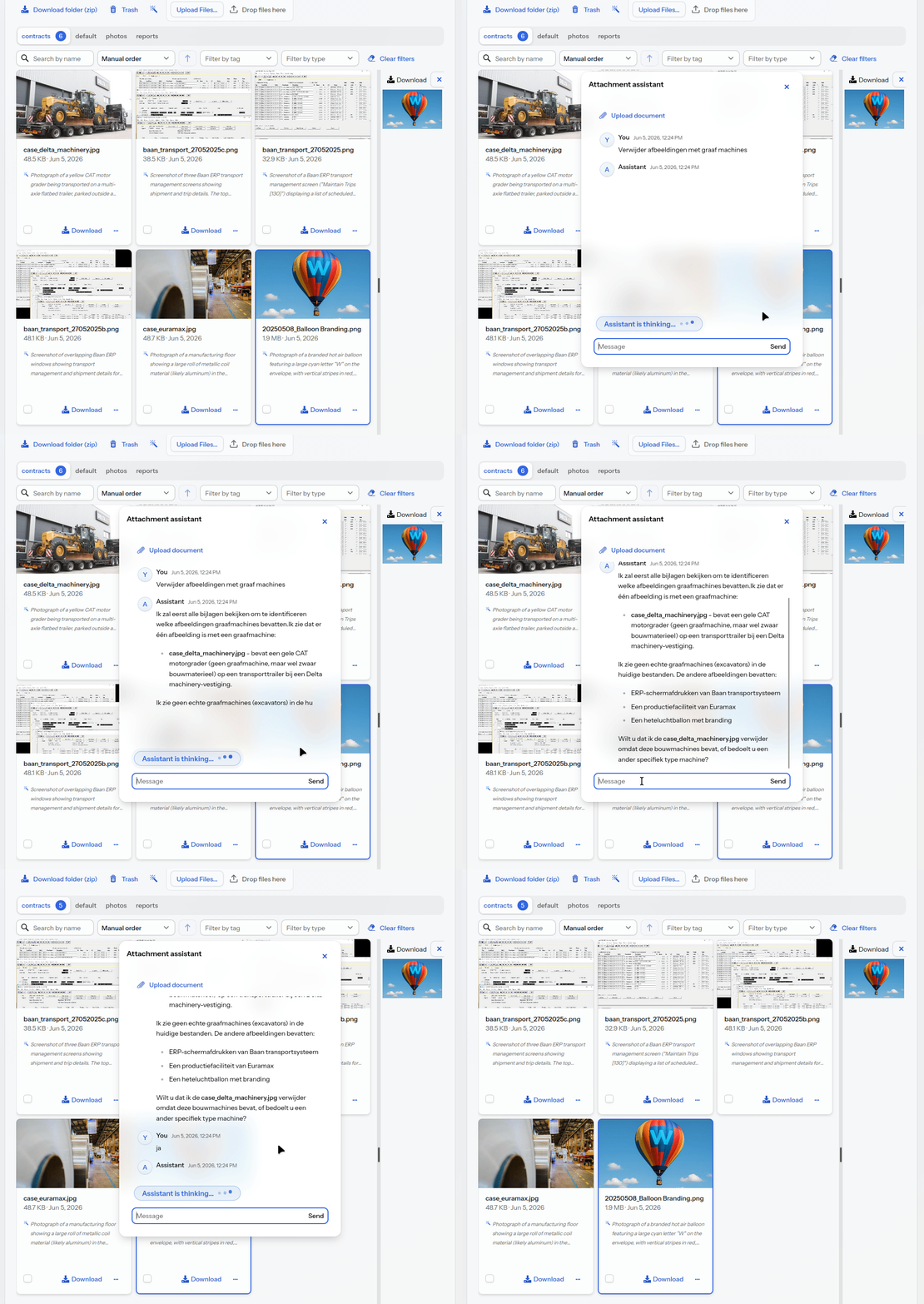
The buttons for soft delete and restore are under trash.
Limits and safety
Privacy: for sensitive information, a local AI LLM can be used.
Confirmation for irreversible actions: deleting goes to the trash and can be undone. Permanent deletion only happens after explicit confirmation.
Updating only what you choose: the assistant creates a new version of a file only for an attachment you have selected yourself.
Accountability afterwards: after each action, the assistant reports in plain language exactly what was changed.
This ties in with the security of the panel itself, such as the virus scan and quarantine.
Part of the attachment panel
The assistant is part of the same reusable attachment panel that you attach to an order, a contact, a project or an item. It operates the same functions as the buttons in the panel, based on what you ask it. Clicking remains possible; describing is added.
Curious what an in-house low-code framework gets you when you want AI functionality like this in several places in your system, or what a modernisation of your existing software would look like? Feel free to get in touch. |