
Blog Wercstat
New attachment panel: document management in the browser
The attachment panel in our framework has been rebuilt with many extra capabilities: folders, labels, version control, sorting, filtering, virus scanning and AI summaries. An overview of all the features.

Wercstat attachment panel


The attachment panel is one of the most-used parts of our framework: the screen you use to attach documents to an order, a contact, a project or an item.
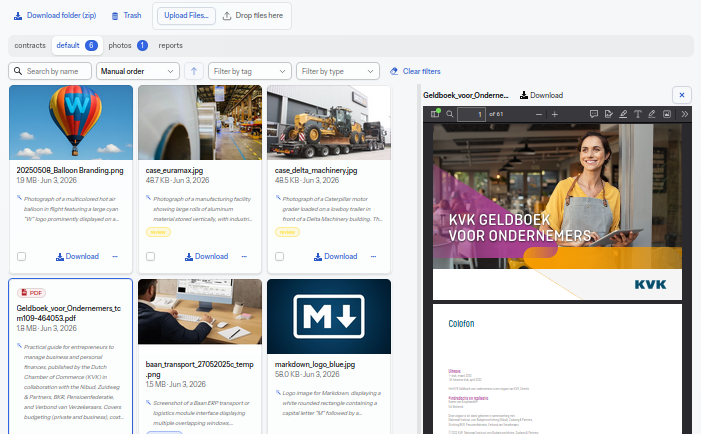
The component has been rebuilt and now offers many new capabilities:
Uploading with AI summary
Multiple files at once: up to ten files at a time.
Preview: a thumbnail is created for the overview.
AI summary: an AI reads the document and writes a short summary for it. For privacy reasons this is optional, and can be limited to a local LLM.
Virus scan: the file is checked. An infected file goes into quarantine.
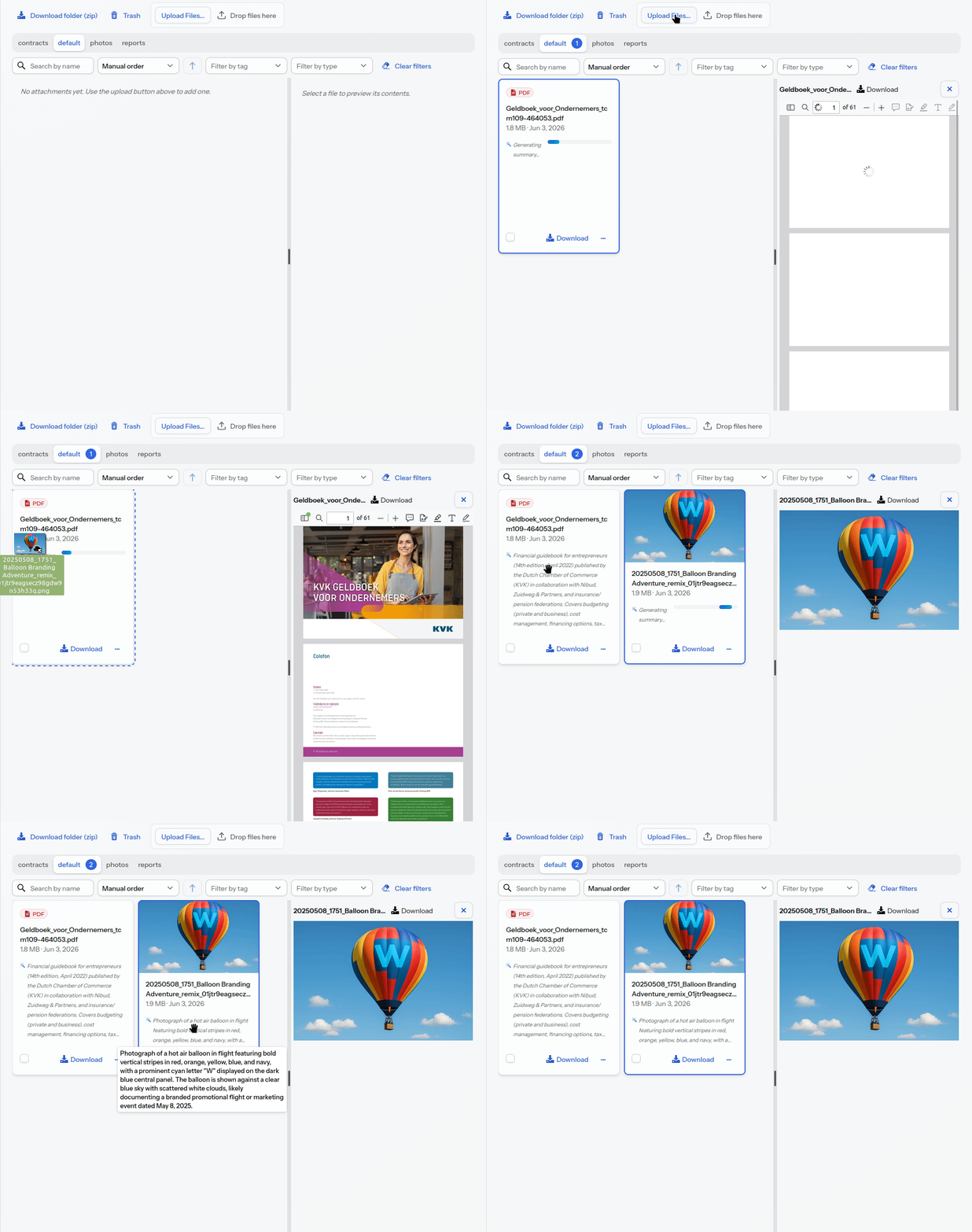
Elsewhere in the application, AI can use the summary to quickly determine whether the attachment is relevant for answering questions. And of course it also gives the user a quick insight into the content of the attachment.
The panel now also has an AI assistant that uses these summaries and, on top of that, performs management tasks based on an instruction in plain language. |
Display and navigation
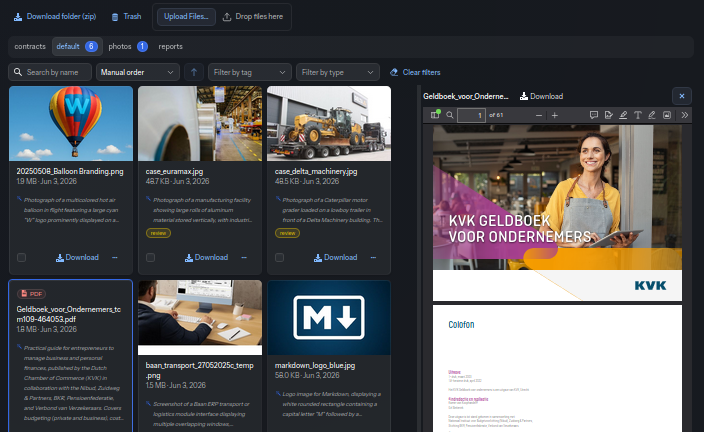
The panel is a worksheet with two halves: on the left the files as cards, on the right a preview. The divider between them can be dragged.
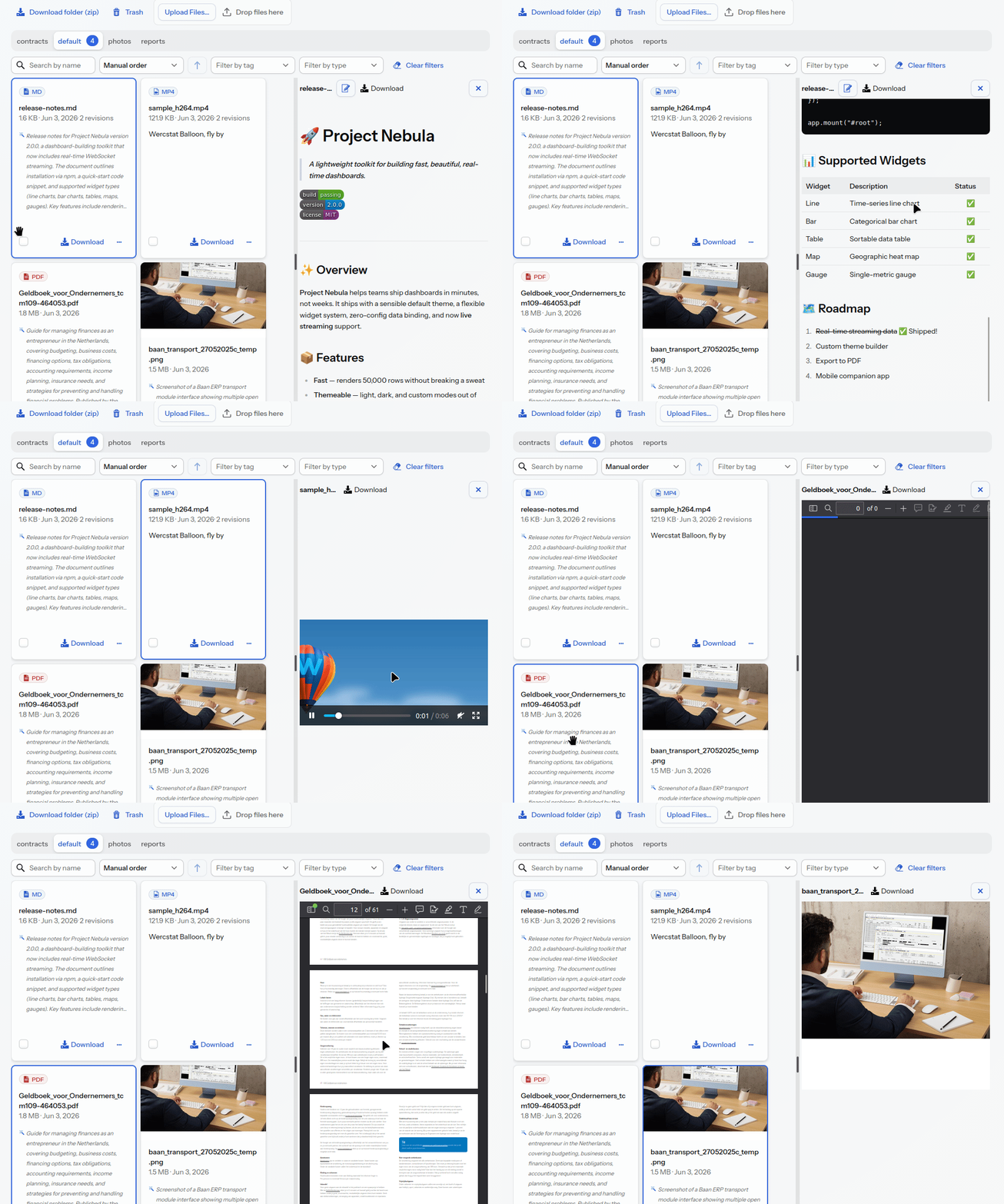
Preview: click a file and see it immediately, without an external viewer or a download first. Images, PDFs, video, audio, text, Markdown, code and JSON/XML/HTML are supported.
Card overview: each card shows a thumbnail or type icon, the name, upload date, size, file type, a description and the AI summary.
Version control
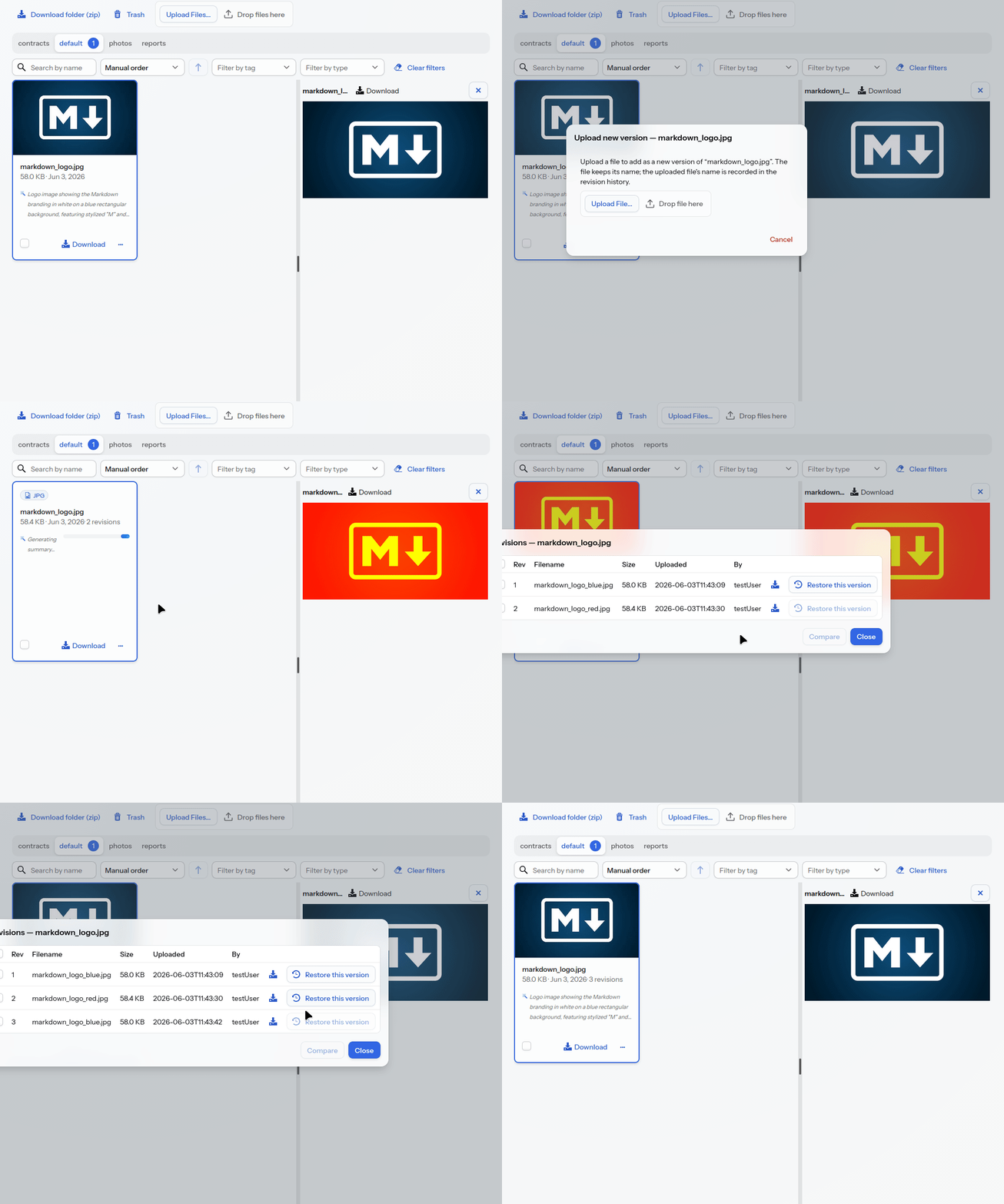
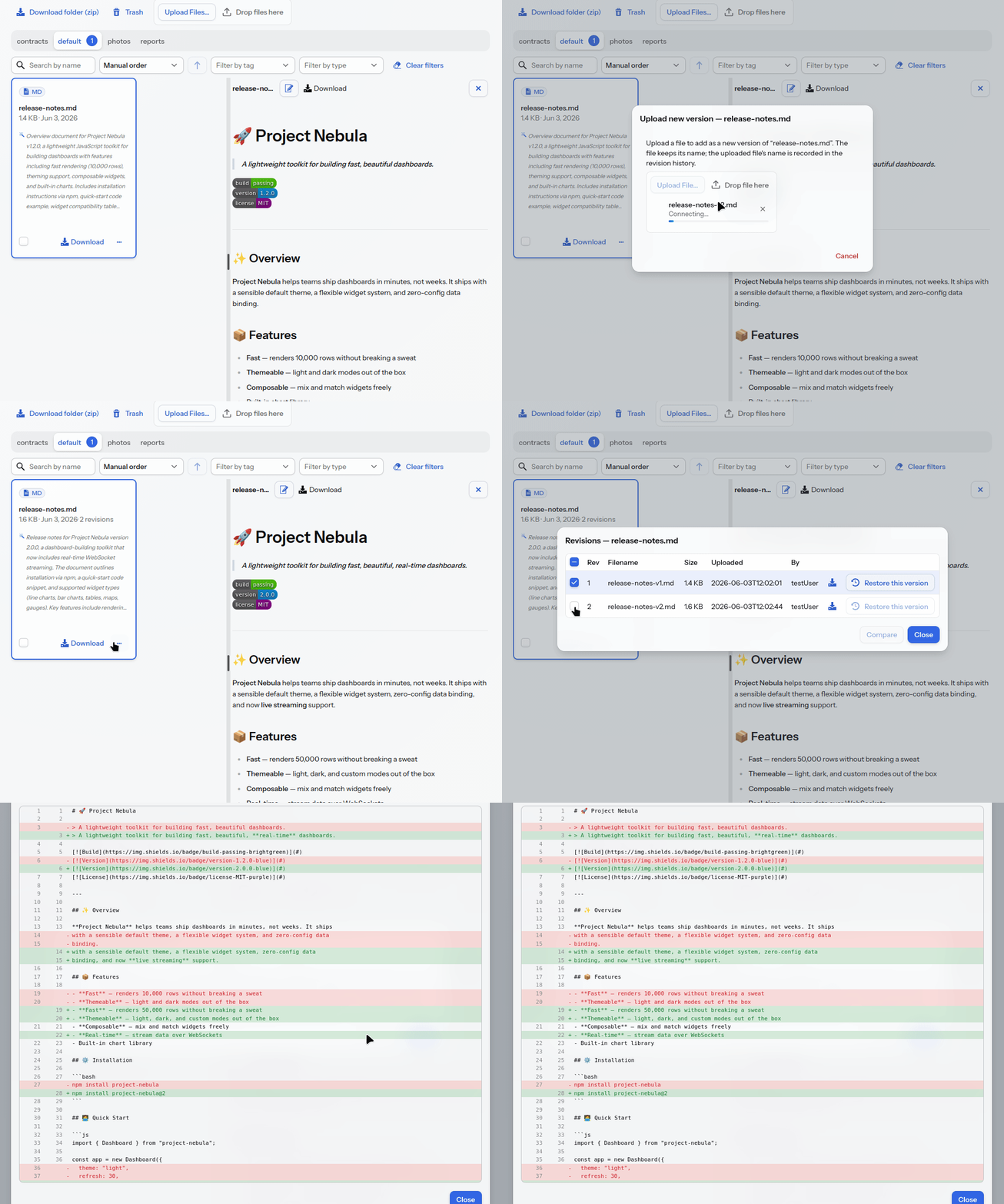
Upload a new version: replace a document without losing the old version.
Revision history: per file, the list of versions, including user and time.
Restore a revision: set an earlier version back as the current one.
Text comparison: compare two text revisions line by line in a
unified diff, with added and removed lines in colour.
Folders
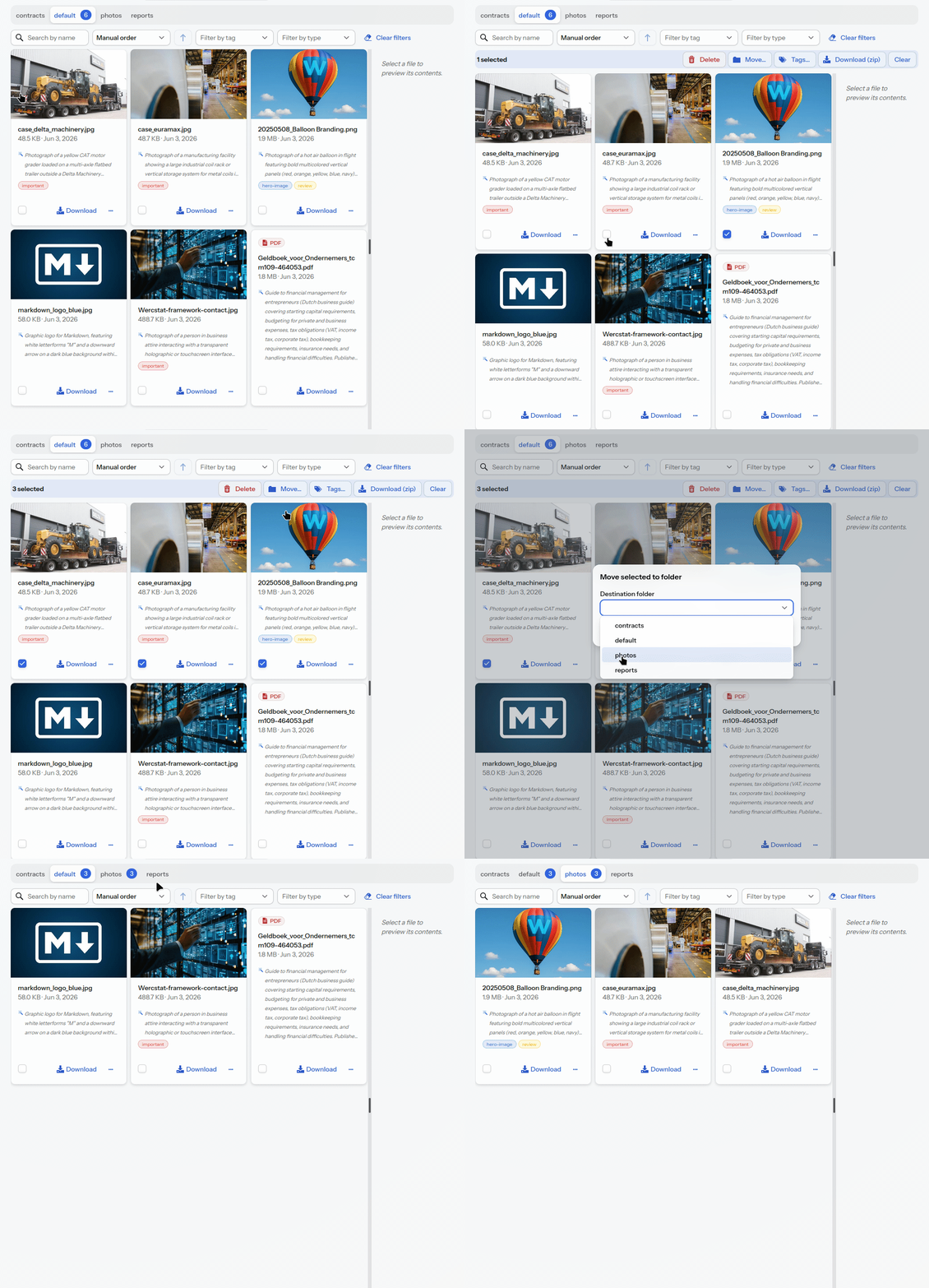
Folders as tabs: attachments can be organised into folders, each with a live count of the number of files.
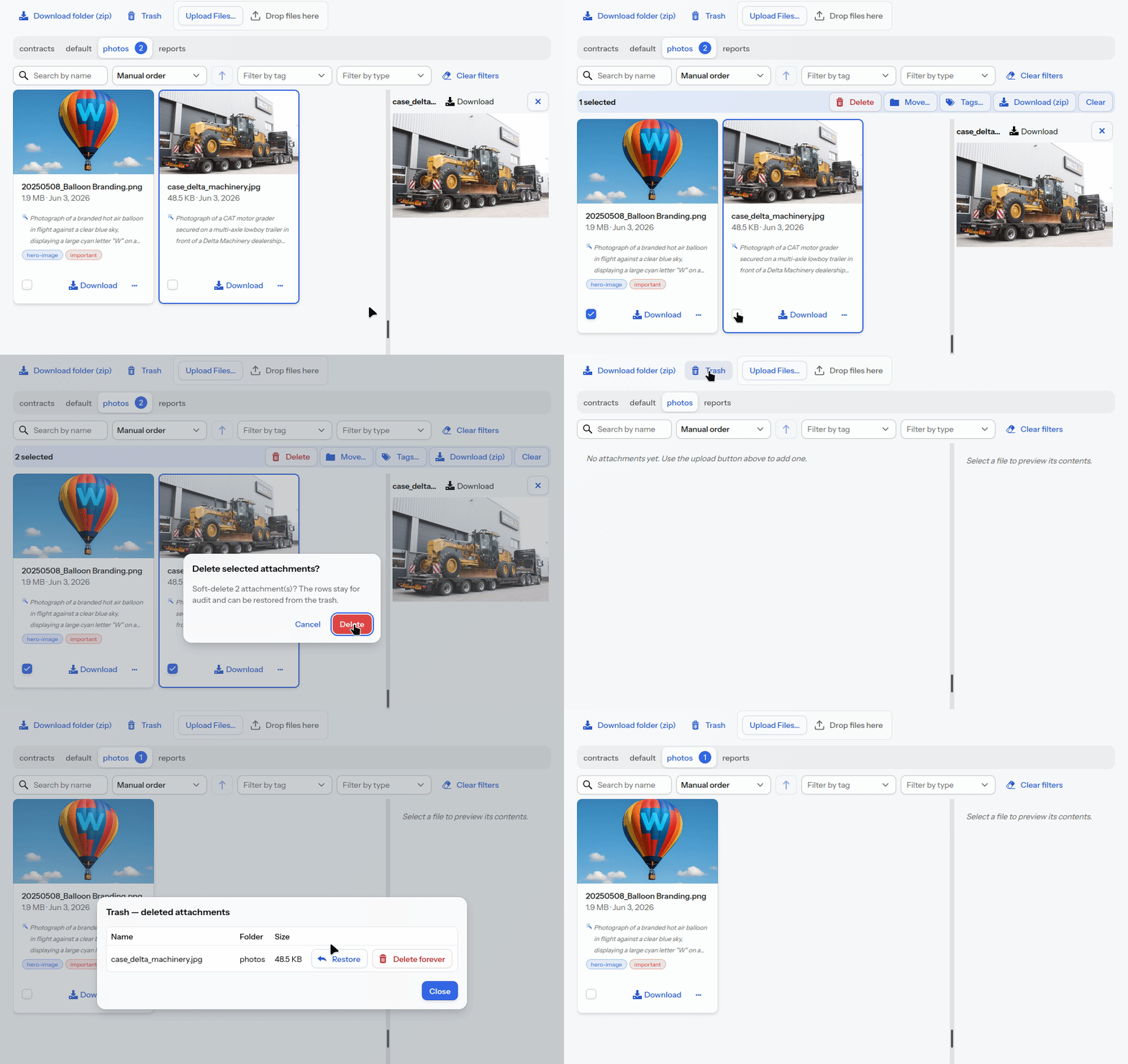
Bulk actions: move multiple files to a folder at once, label, delete or download them as a ZIP.
Labels and categorisation
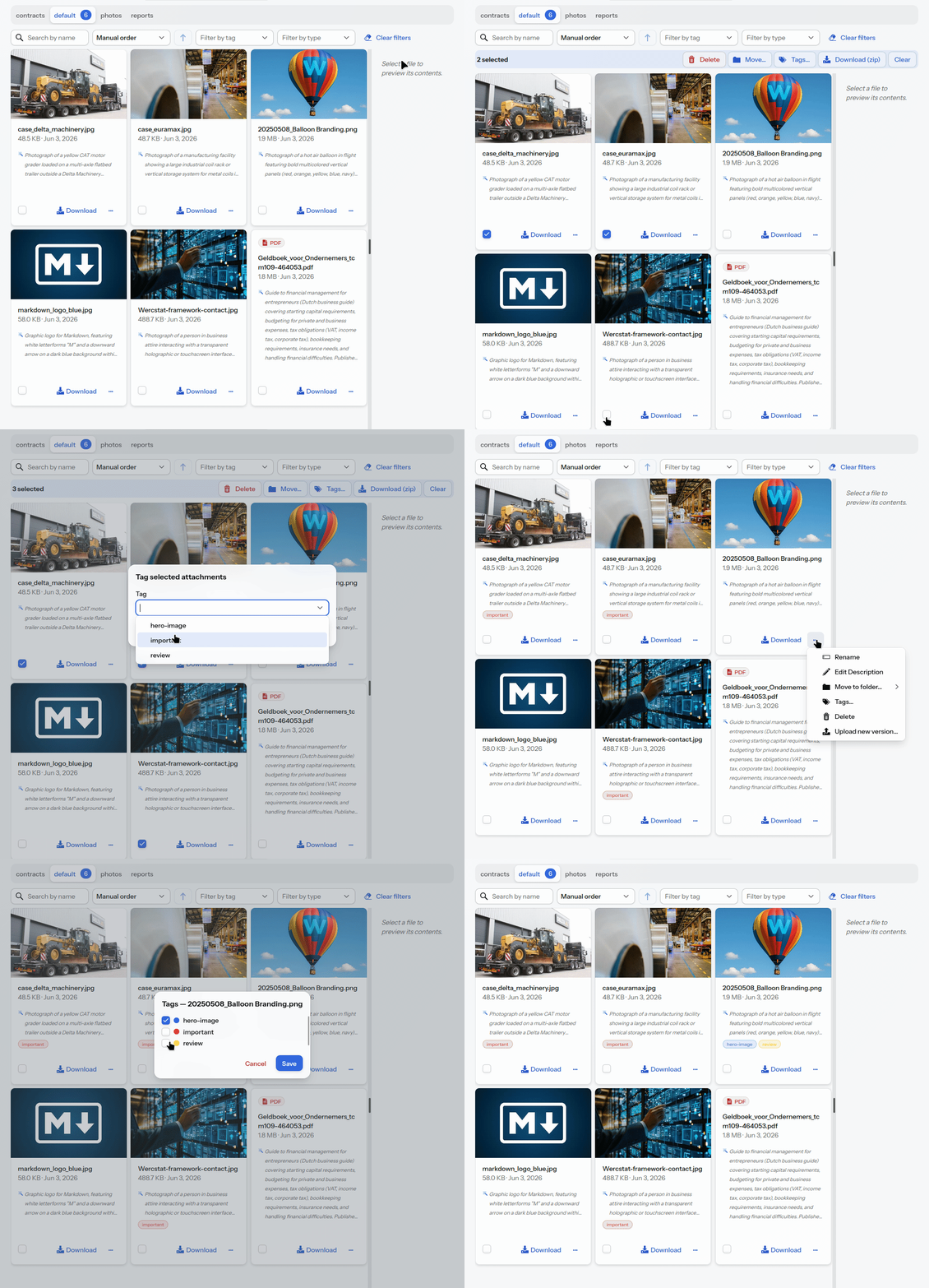
Labels as colour chips: categorise across folders.
Manage labels per attachment via a dialog with the available labels.
Bulk labelling: assign a label to multiple files at once or remove it again.
Editing files
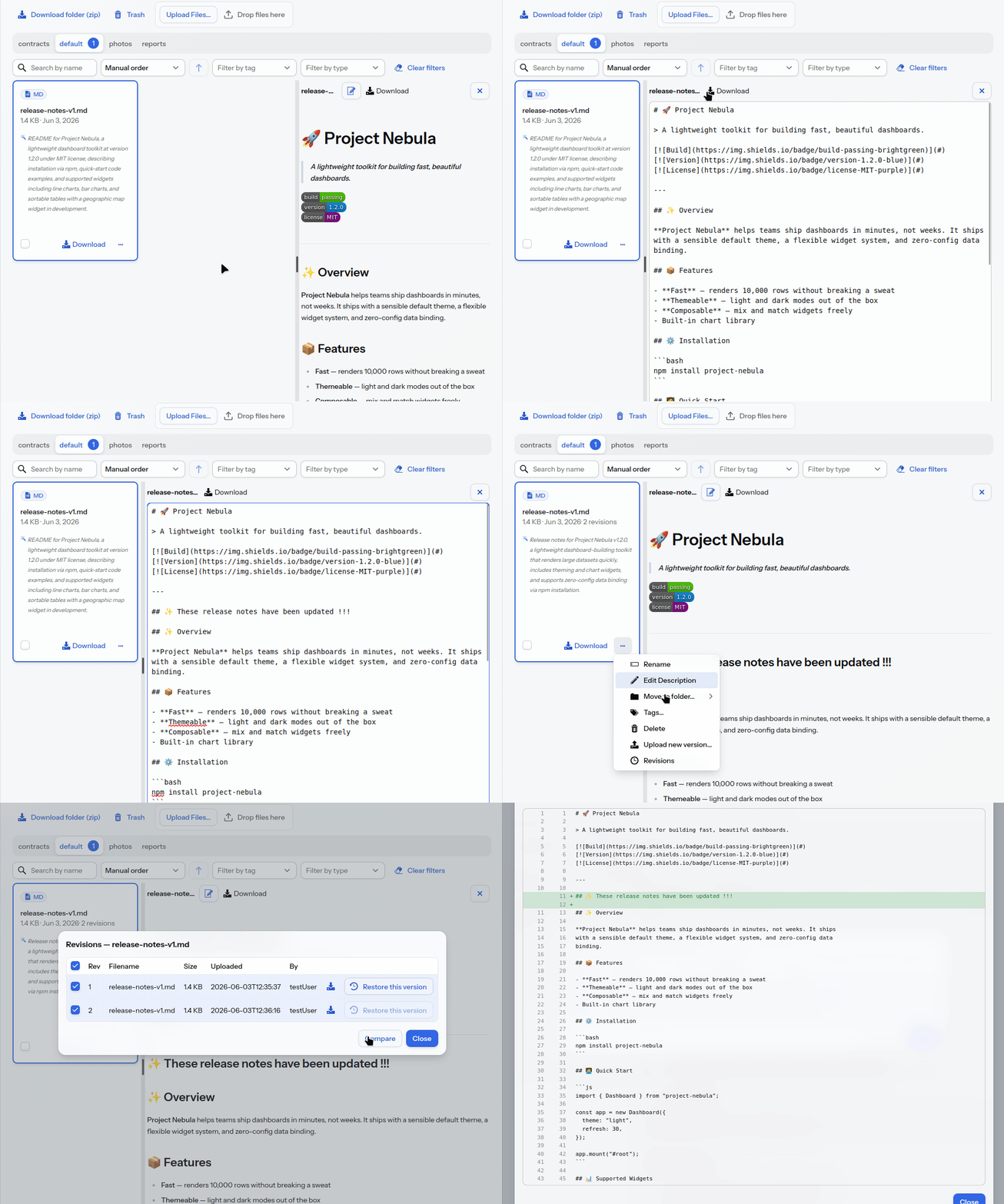
Edit in place: text, code and Markdown files can be edited and saved directly in the preview.
Trash
Soft delete: deleted files go to a trash bin and can be recovered, until you empty it permanently.
Sorting
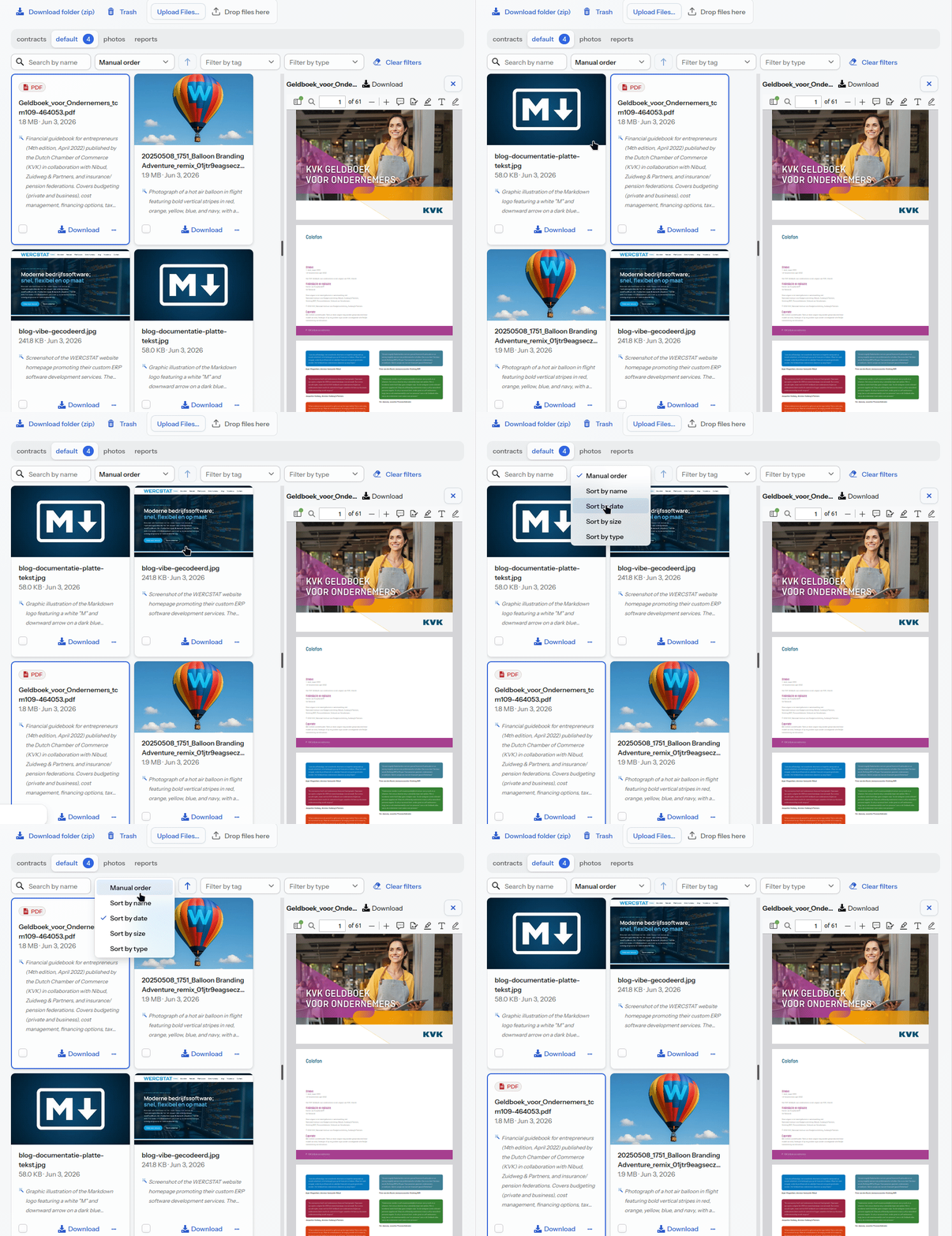
Sorting: by name, upload date, size, file type or a manual order, with a button to reverse the direction.
Drag for manual order: drag a card into place. This is possible as soon as you sort manually and no filter is active.
Filtering
Search: free text on name and description.
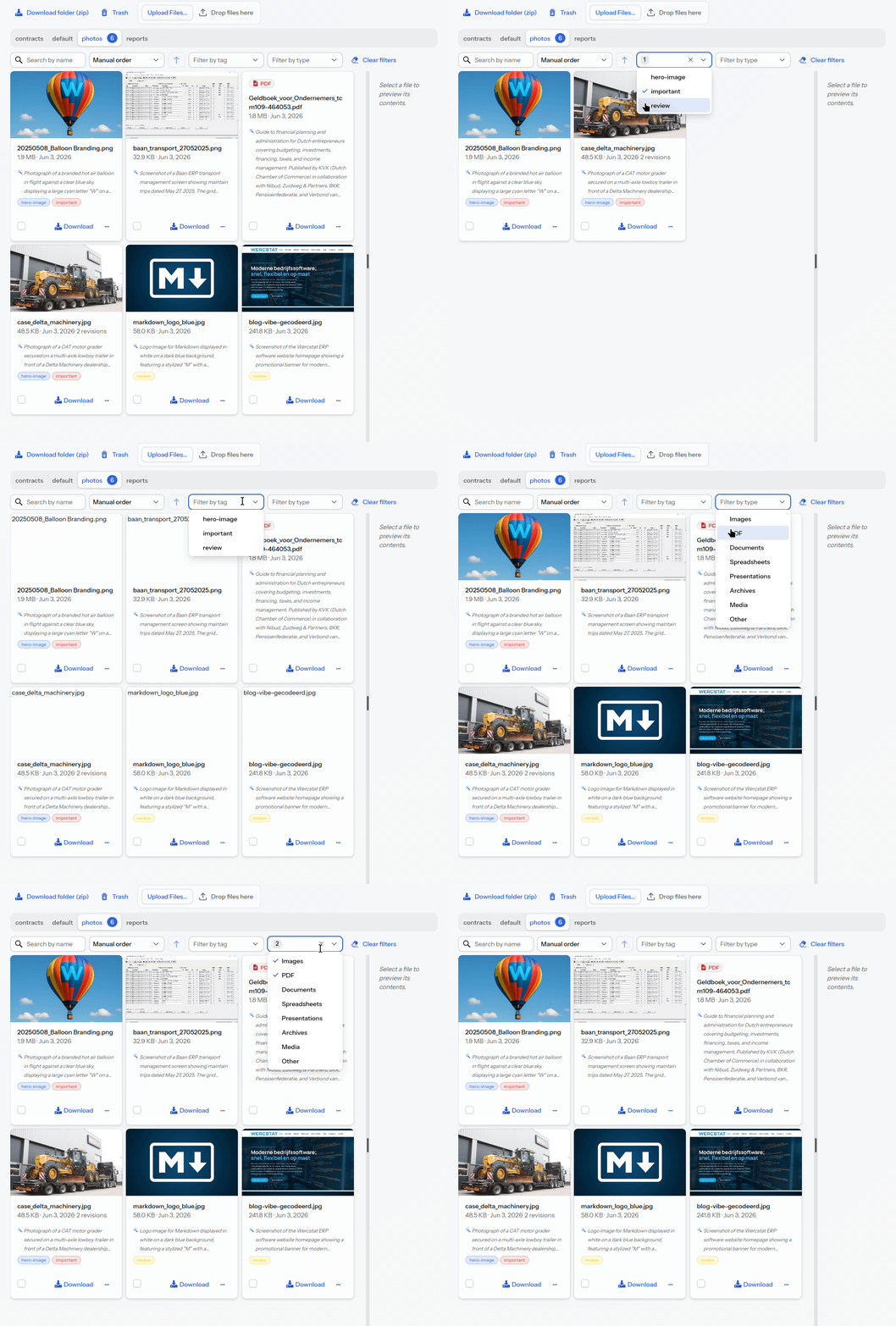
Filter by type: file types are grouped into eleven families (image, PDF, document, spreadsheet, presentation, text, code, archive, video, audio and other).
Filter by label: show only files with one or more chosen labels.
Security
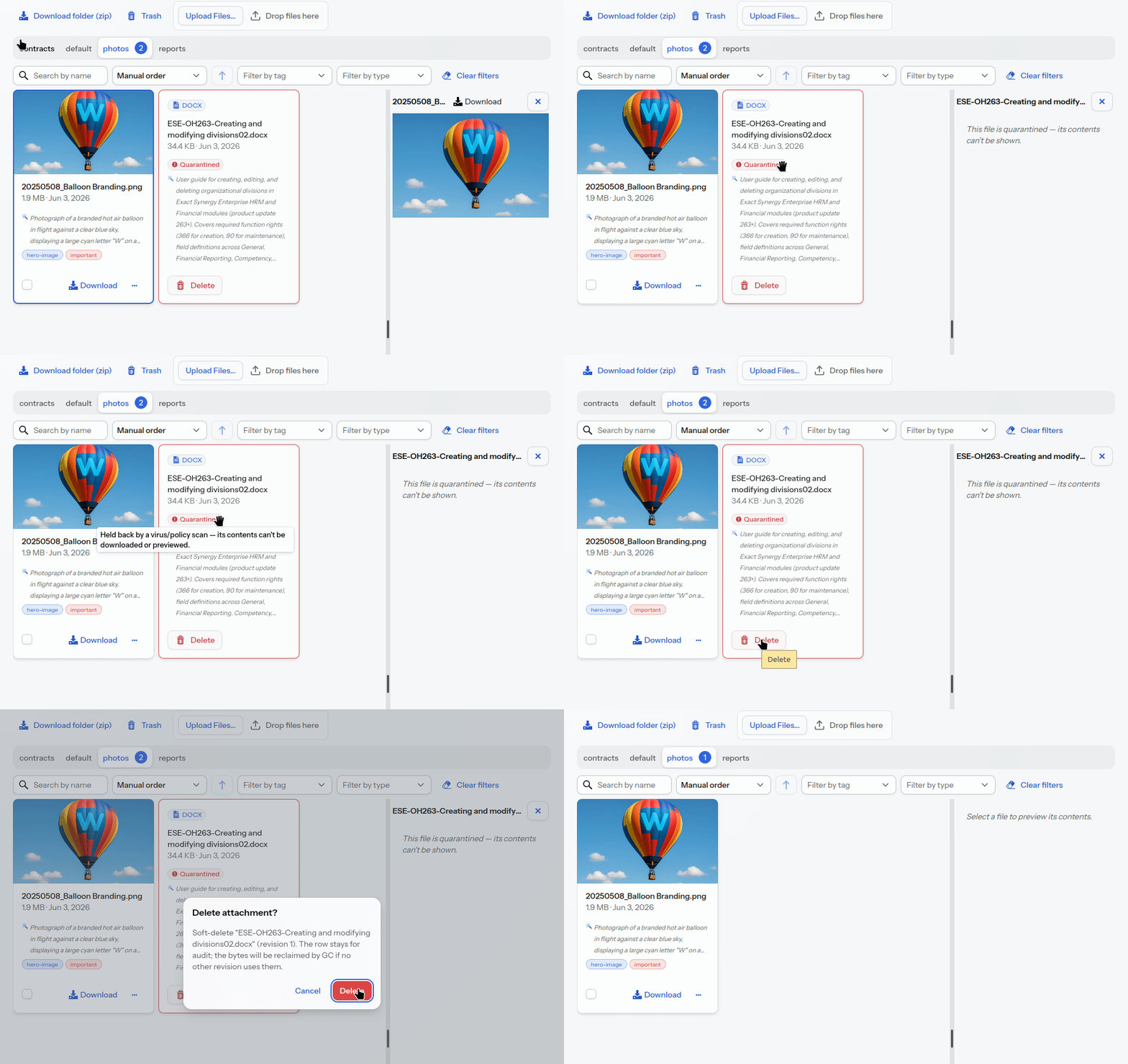
Quarantine: a file rejected by the virus scan stays visible with a warning badge, but cannot be opened, downloaded, edited or selected for bulk actions.
Server-side limits: the type and size of uploads are checked both in the screen and again on the server.
Styling
And finally, the attachment panel is of course also available in dark mode, and if desired with company-specific colours and styling (using CSS).
One component, the same everywhere
The attachment panel is not a standalone screen but a reusable part of the framework. Attach it to an order, a contact, a project or an item, each with its own folders and labels.
Curious what an in-house low-code framework gets you when you need the same component in ten places, or what a modernisation of your existing system would look like? Feel free to get in touch. |